


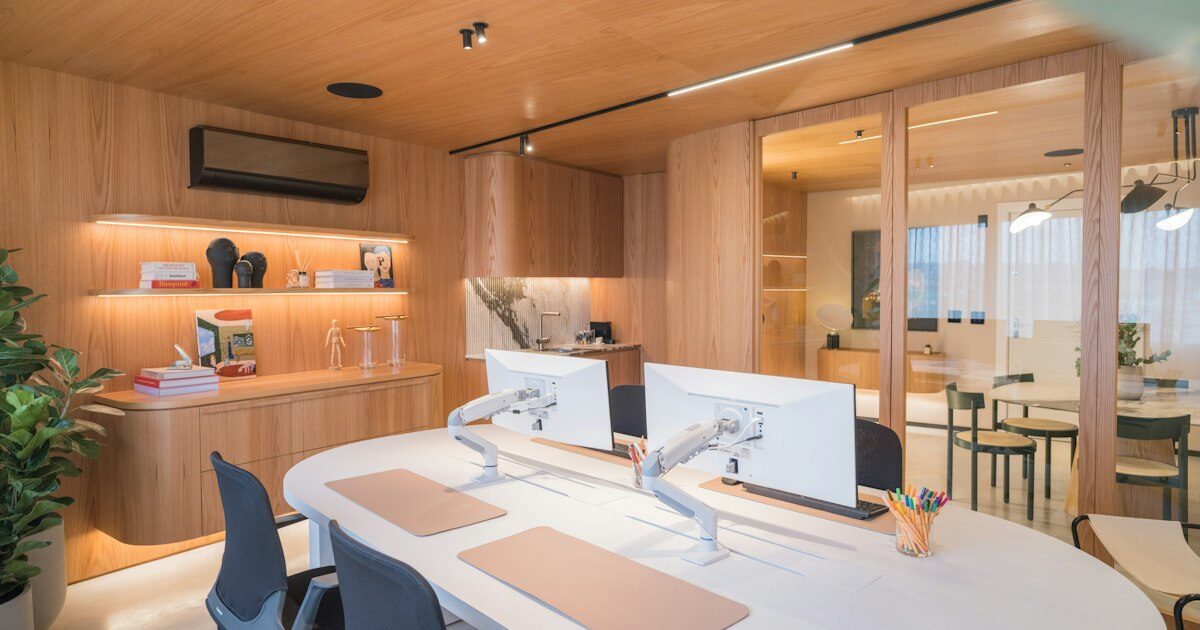
Few things destroy the aesthetic harmony and mental focus of a modern home office faster than a chaotic nest of tangled wires dangling beneath a workstation. Black power bricks rest on dusty baseboards, monitor cords twist around ergonomic chair wheels, and charging cables cascade haphazardly across solid wood desktops. This visual static creates subconscious cognitive fatigue, making your daily work routine feel disorganized and cluttered.
Achieving a completely wireless, floating workstation aesthetic does not require electrical contractor training or custom cabinetry. By treating desk wire concealment as a disciplined exercise in spatial routing and electrical architecture, you can permanently conceal every single conductor. Below is our definitive step-by-step blueprint for routing, bundling, and hiding home office cables.
1. The Geometry of the Single-Drop Power Architecture
The primary reason home office desks become tangled wire nests is multi-drop outlet routing: running five or six individual cords directly from your monitor, laptop charger, desk lamp, and speakers down to a wall outlet on the floor. Every loose wire swings freely in three-dimensional space, multiplying visual chaos.
The core principle of professional cable management is the Single-Drop Power Architecture. Under this system, exactly one heavy-duty grounded power cable ever leaves your desk frame to connect to the wall receptacle. All individual appliance plugs, AC-to-DC transformer bricks, and peripheral adapters remain physically mounted beneath the underside of the desk desktop.
According to electrical installation and surge standards established by the National Electrical Manufacturers Association (NEMA), power distribution strips mounted directly to furniture must feature metal-oxide varistor (MOV) surge suppression rated for at least 1,500 Joules and include an integrated master circuit breaker. Mount an 8-to-12 outlet metal surge protector to the rear underside of your tabletop using heavy-duty wood screws or industrial-strength dual-lock interlocking fasteners.

2. Selecting and Mounting Under-Desk Wire Raceways
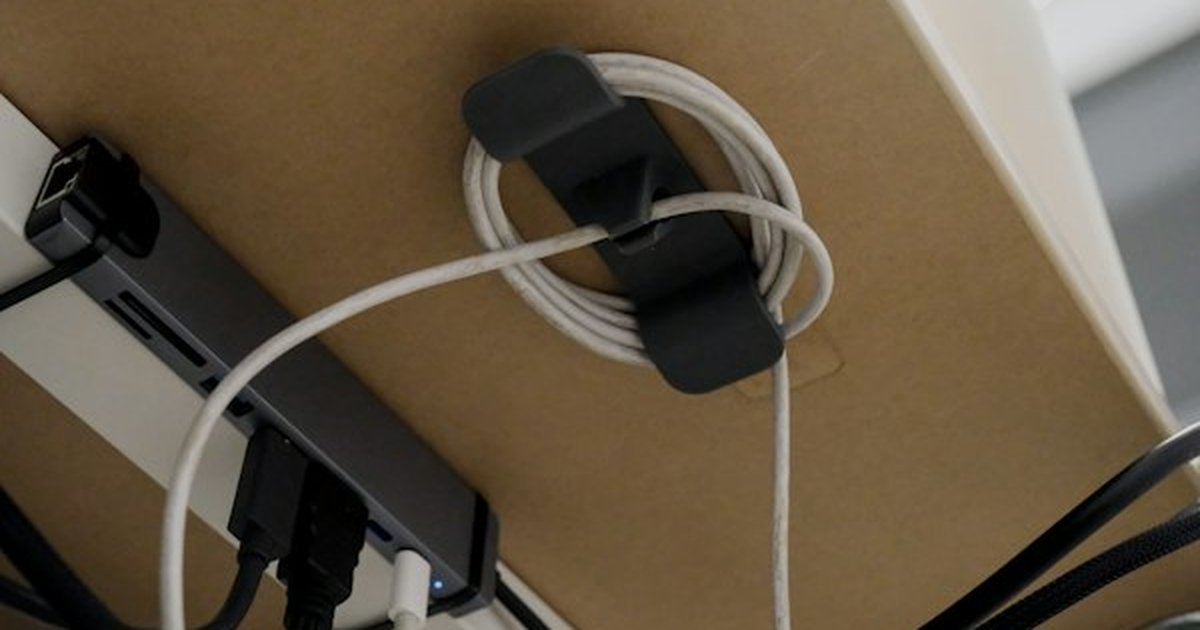
Once your master surge protector is secured beneath the desktop, you need an enclosed arterial highway to conceal excess cable slack. Cords manufactured for monitors and laptops are typically six feet long, yet they only need to span eighteen inches between the display and the power brick. Hiding that surplus four feet of wire is the job of an under-desk raceway.
Avoid flimsy adhesive plastic clips; heat from power transformers degrades standard adhesives within months, causing wires to drop onto your feet. Instead, select one of two permanent mechanical systems:
- Powder-Coated Steel Wire Baskets: Open wire mesh trays screw directly into tabletop pilot holes. Their perforated design promotes passive convective airflow, preventing high-wattage laptop charging bricks from overheating while offering endless anchor points for hook-and-loop ties.
- Extruded PVC J-Channel Cable Tracks: J-channels provide a solid visual facade that hides wires completely from view. Mount them along the rear edge of the desktop facing the wall for instant drop-in accessibility.
3. Ergonomic Leg Drops and Articulated Monitor Arms
Routing cables across a static desk is simple, but sit-stand motorized height-adjustable desks introduce dynamic physical movement. If you bundle wires tightly with rigid zip ties on a sit-stand desk, raising the desk to standing height will snap display ports or rip power cords from wall receptacles.
To accommodate dynamic movement without drooping slack, follow ergonomic workstation standards published by the Human Factors and Ergonomics Society (HFES). Install an articulated modular cable spine or flexible neoprene zippered cable sleeve along the rear desk leg. When setting cable lengths, raise your motorized desk to its absolute maximum standing elevation and verify that all wires retain a gentle strain-relief service loop with at least six inches of slack before anchoring.
On the desktop surface, eliminate monitor stand footprints by clamping articulated gas-spring monitor arms to the rear desk edge. High-end monitor arms feature integrated internal cable channels: unclip the plastic shroud, feed DisplayPort and power lines through the arm’s hollow cavity, and re-snap the cover in place. The cables drop seamlessly through the desk’s rear perimeter directly into the under-desk raceway without exposing a millimeter of copper.

4. Electromagnetic Interference (EMI) and Signal Line Isolation
A common mistake during enthusiastic cable cleanup is zipping every wire into one giant, tight umbilical trunk. While bundling power cords, monitor display cables, USB data interconnects, and analog audio lines into a single tube looks tidy on the surface, it frequently causes bizarre technical glitches: flickering external displays, dropped USB webcam connections, and an audible 60-Hertz electrical buzzing hum through studio monitors and headphones.
This disturbance is caused by Electromagnetic Interference (EMI). High-voltage alternating current (AC) lines carrying 120 volts generate fluctuating magnetic fields that induce micro-voltages in adjacent unshielded conductors. To prevent cross-talk and signal degradation, execute parallel separation:
- Maintain a 4-to-6 Inch Air Gap: Route high-voltage AC electrical lines along the left under-desk rail, and route low-voltage data lines (HDMI, DisplayPort, Cat6 Ethernet, and USB-C) along the right rail.
- Cross at Ninety Degrees: When an AC power cable must inevitably intersect a data line, cross them at a strict ninety-degree perpendicular angle rather than running them parallel to each other. Perpendicular crossing minimizes the surface area susceptible to inductive magnetic coupling.
- Thermal Dissipation for Power Bricks: Never wrap high-draw laptop charging transformers in thick blankets of cables. A 100-watt GaN or silicone-carbide power supply requires open ambient airspace inside your wire tray to radiate heat safely and maintain peak charging efficiency.
5. Cable Management Hardware Specification Matrix
Compare the functional capabilities, installation methods, and optimal uses for primary home office wire concealment hardware:
| Concealment Hardware | Primary Material | Mounting Method | Thermal Ventilation | Best Application |
|---|---|---|---|---|
| Wire Mesh Cable Tray | Powder-coated carbon steel | Direct wood screw pilot holes | High (360-degree open convective cooling) | Large power bricks, multiport USB hubs, bulky excess cord loops |
| PVC J-Channel Raceway | Rigid impact-resistant polymer | Heavy-duty adhesive or countersunk screws | Moderate (open top edge) | Rear perimeter perimeter line-runs, audio interconnects |
| Articulated Cable Spine | Segmented ABS snap-links | Top desk bracket + weighted floor base | High (flexible segment joints) | Motorized sit-stand height-adjustable desk leg drops |
| Hook-and-Loop Straps | High-density reusable nylon micro-hooks | Self-wrapping tension cinch | N/A (soft binding) | Bundling parallel conductors, preventing electromagnetic crosstalk |
6. Holistic Home Organization Integration
Applying rigorous organization to your home office wire infrastructure establishes a standard that elevates the rest of your living environment. If you are refining other high-friction storage spaces, explore our step-by-step methods in the ultimate kitchen pantry organization system.
For mounting floating media shelves or organizing office supply ledges securely on drywall, reference our carpentry structural guide on how to build sturdy DIY floating shelves on drywall. Finally, complement your serene workspace by applying spatial zoning principles from our guide to small-space living room layouts for flow and comfort.